

RangeeOS - Netzwerkverbindung mit 802.1x Authentifizierung
With RangeeOS, you can easily establish a connection to an 802.1x-secured network. The general setup of the 802.1x connection is described in our manual under LAN Profile and WLAN Profile. This article explains additional options and possibilities for practical setup.
Certificates
An 802.1x connection is usually secured by a certificate. These certificates can be transferred to the device with RangeeOS in different ways.
Automatically via SCEP
Instructions for automatic retrieval via SCEP (Simple Certificate Enrollment Protocol) can be found in our KnowledgeBase in the following HowTo:
RangeeOS - Obtaining a computer user certificate with SCEP
Manual certificate upload
Externally created certificates can also be installed manually on the client via System -> Certificates:
Rangee Thin Client Admin Guide 13.00 - Certificates
Network profiles
Distribute profile within a TCMS group
A profile for an 802.1x connection created on a client can also be transferred to other devices via a TCMS configuration. The following options should be set accordingly in the LAN profile:
- Connection name: Choose a meaningful name for the network profile, e.g. "Authenticated".
- Preferred device: Make sure that "*" is selected here in any case. Only then can the profile work on other devices.
- Automatically connect with priority: Assign a priority with which the client should connect to this network. The higher the value set here, the earlier this profile is used (empty = 0).
- Distribute profile via TCMS: With this option you enable distribution via TCMS group configuration.
Afterwards, the configuration of this client must be dragged into the TCMS group.
Fallback profile
As a rule, it is desirable or, for the initial retrieval of a SCEP certificate, even mandatory that a client can also use a network connection without 802.1x enabled. This can be achieved via an additional network profile.
To do this, set up an additional profile with this data:
- Connection name: Choose a meaningful name for the network profile, e.g. "Unauthenticated".
- Preferred device: Make sure that "*" is selected here in any case. Only then can the profile work on other devices.
- Automatically connect with priority: Assign a priority with which the client should connect to this network. The higher the value set here, the earlier this profile is used (empty = 0).
- Distribute profile via TCMS: With this option you enable distribution via TCMS group configuration.
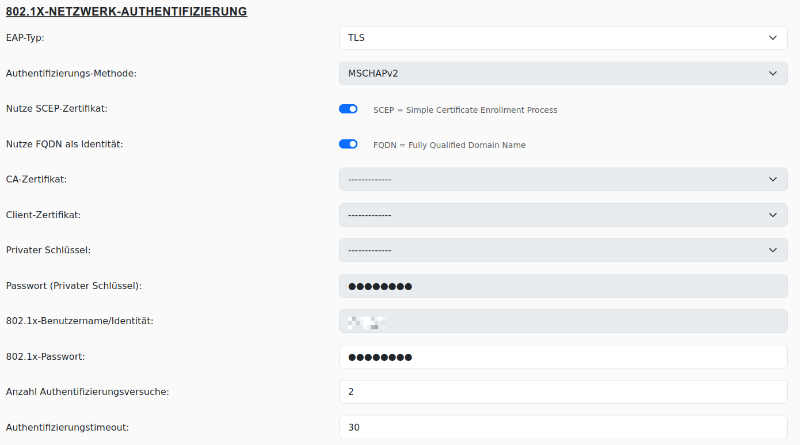
If you set Automatically connect with priority lower than in the Authenticated profile, the Unauthenticated profile is only loaded if the connection to the 802.1x network has previously failed. With the default settings, it can take between 2 and 3 minutes after booting until an automatic fallback to the Unauthenticated profile is performed. You can shorten the time until the profile is loaded by additionally configuring these options in the Authenticated profile: - Number of authentication attempts: Specify the number of attempts the client should make to authenticate.
- Authentication timeout: Define how long the client should wait in seconds until a new attempt is started.
With a number of 2 and a timeout of 30, it takes at most only 60 seconds until the fallback becomes active. Depending on the network environment and authentication speed, significantly lower values are also possible here.